Move PUBG MOBILE Buttons to Fit Your Hands
On this page
Move the button you keep missing, then save the layout for the mode you play. This setup uses PUBG MOBILE’s Android touchscreen controls.
Open the layout for your mode
Take a screenshot of your current layout before changing it. From the lobby, tap the upward arrow at the bottom right, open Settings → Controls, and choose Classic or Arena Team. Tap Customize. The control editor lets you move buttons and the joystick. Control editor instructions · Touchscreen controls
Move the buttons you actually miss
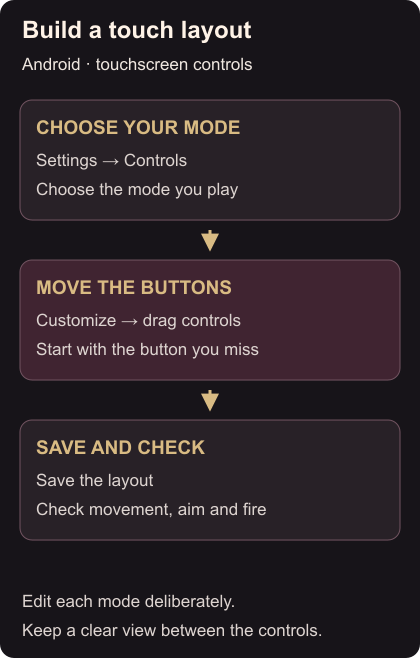
Drag the troublesome button somewhere your finger reaches comfortably. Separate buttons you often confuse and leave space to see the centre of the screen. Start with that one change so you can tell whether it helps.
Save your changes before leaving the editor. When you next play, deliberately move, turn the camera, aim and fire. Check that each tap reaches the action you intended. If the layout looks unchanged, reopen the same mode’s control editor and check the saved arrangement.
If the button works but aiming feels too fast or slow with one gun, adjust that weapon’s sensitivity. For unwanted gear filling your inventory, change auto-pickup limits.