
Import a Legacy Story Save into GTA V Enhanced on PC
On this page
Choose your PC Story Mode save carefully: a successful Enhanced download uses your account’s one-time Story migration. Later Legacy progress will not sync. Use the Rockstar account linked to your intended PC store account; console saves cannot use this transfer.
Upload, then download
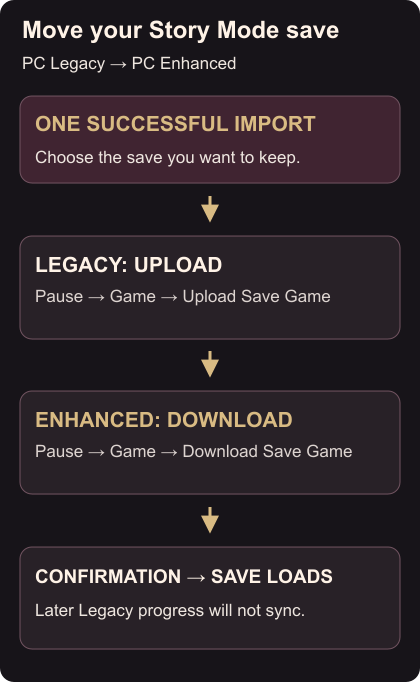
- In GTA V Legacy, pause in-game and choose Game → Upload Save Game. Select your save, confirm it and wait for the upload confirmation.
- Open GTA V Enhanced. Pause, choose Game → Download Save Game, select the uploaded save and confirm.
- Wait for the download confirmation. Enhanced then loads that save. Rockstar’s migration instructions
If the save is missing
You can replace the upload until you start downloading it in Enhanced. Uploads last 90 days; an expired upload may need uploading again. Some accounts are ineligible.
On a fresh installation, the Story landing-page tab can offer the download. If saves already exist, use the pause-menu route above.
Check Enhanced’s PC requirements before switching. For installation trouble, verify the game files.