
Set Up Mobile Aim and Power Controls
On this page
Set up the aiming controls in Miniclip’s mobile 8 Ball Pool so small adjustments feel comfortable. Start from the main menu, before choosing your next shot.
Choose how you aim
Tap the cog at the bottom-left to open Settings. Cue Sensitivity changes how quickly the cue moves when you aim. If you keep sweeping past the target, try a lower setting.
Enable Aiming Wheel if you want the separate aiming control beside the table. Its movement is independent of Cue Sensitivity, so lowering sensitivity won’t slow that wheel. Change one setting at a time, then check how the cue responds. You can also replay Tutorial from Settings. Control settings
Put the Power Bar within reach
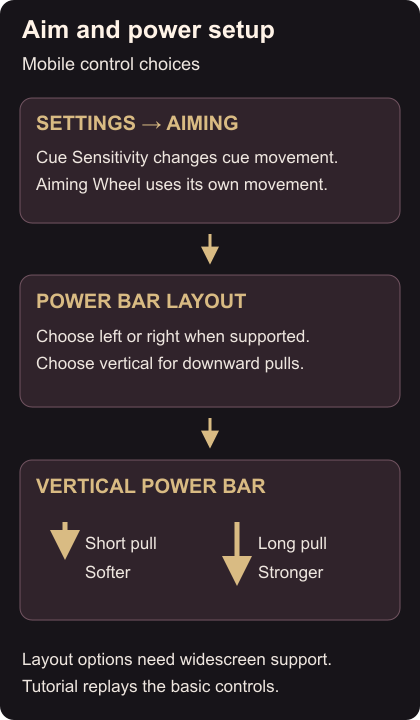
Scroll to the Power Bar options. Location chooses left or right; Orientation chooses vertical or horizontal. A horizontal bar sits in the lower corner on your chosen side. Layout options These options require a supported widescreen device. If they are missing, that device doesn’t support changing the layout. Power Bar availability
With a vertical bar, tap and drag downward to increase strength: a shorter pull gives a softer shot, a longer pull gives a stronger one. Aim first by dragging the cue or using the wheel. Mobile controls
For the ball’s starting spot, see repositioning the cue ball. To change its movement after contact, use cue-ball spin.