Highlight a Gear Rarity with the Loot Filter
On this page
Start with one gear rarity you want to notice in Diablo IV. Choose an item already in your inventory as your example, so you can check the result immediately. These steps use the PC interface.
Make a single recolor rule
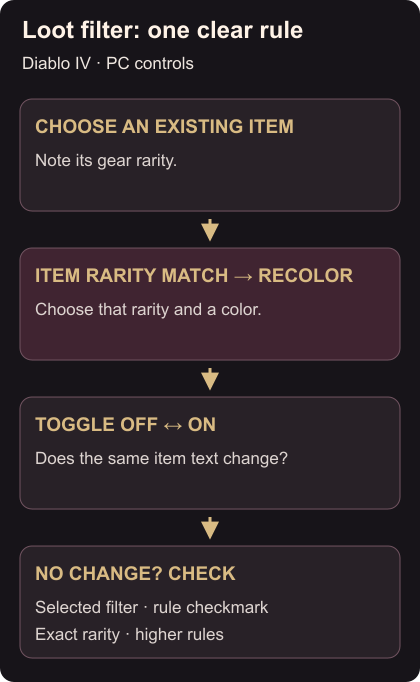
- Open Options > Gameplay > Open Loot Filter.
- Choose New Filter and name it after your goal.
- Select Add Rule, then Add Condition.
- Choose Item Rarity Match, select your example item’s rarity, and set Recolor with your chosen color.
- Select that filter. Only one filter runs at a time. Loot-filter controls
Use a fresh filter for this first check. That gives you one rule to inspect if the result looks wrong.
Check the same item with the filter off and on
Set an on/off binding under Options > Controls > Toggle Loot Filter. Toggle it while looking at your example item. Recolor affects matching gear text in the inventory as well as dropped gear. Recolor and toggle
If its text doesn’t change, check the selected filter, the rule’s checkmark and the item’s exact rarity. With a longer filter, check the order too: higher rules override lower rules.
Keep the filter once the intended item changes color. If you later use a Hide rule, hidden drops cannot be picked up until that rule or the filter is disabled. Rule behavior
Save the gear you actually equip with an Armory loadout. To choose who you play with next, use the Party Finder guide.